Log transactions from SMS automatically
Every time you receive a transaction alert text message from your bank, a Shortcuts automation can log the purchase into Actuali in the background — supporting any currency in the world via Regex patterns or Apple Intelligence AI.
How it works
When an SMS notification arrives from your bank or card issuer, iOS triggers an automation. You can extract transaction details using regular expressions (Regex) or Apple Intelligence:
- Universal Regex Extraction: Uses regex patterns that match any currency symbol (
$,€,£,₹,¥, etc.) or 3-letter currency code (USD,EUR,GBP,INR,CAD,AUD, etc.) alongside the purchase amount and card digits. - Apple Intelligence (AI): Uses the Cloud model action to parse SMS text in any language or currency format into a JSON object containing amount and date automatically.
Before you start
- Install Actuali and connect it to your Actual Budget server.
- Set a Default Account in Actuali's More tab, or pass a card/account hint in your action.
Setup Guides
Option 1: Universal Regex Flow
Extract amount and account digits from incoming SMS messages across any currency using Shortcuts regular expression matching actions.
- Open the Shortcuts app and go to the Automation tab.
- Tap + (or New Automation) and select Message.
- Set Message Contains to keywords your bank uses (e.g. spent, debited, or charged), set Run Immediately, and tap Next.
- Choose New Blank Automation and add a Match Text action for amount:Match:
(?i)(?:[\p{Sc}]|[A-Z]{3}|Rs\.?)?\s*([\d,]+(?:\.\d{1,2})?)inShortcut InputUniversal pattern — matches any currency symbol ($ € £ ₹ ¥ A$ C$ S$ NZ$ kr R R$ etc.), 3-letter code (USD, EUR, GBP, INR, AUD, CAD, SGD, etc.), or plain numbers like$45.50,€12,50,1500.00, or₹450. - Add a second Match Text action to extract the account or card last 4 digits:Match:
(?i)(?:A/c|Card|XX|ending|account)\s*([\d]{4})inShortcut InputMatches card/account numbers like "Card 1234", "A/c XX5678", or "account ending 9876" - Add Actuali's Log Transaction action and map the variables:• Amount: Set to
Text Match (Amount)• Card or Account Hint: Set toText Match (Account)• Payee: Optional (or pass SMS text / Sender)
Option 2: Advanced AI Flow (Apple Intelligence)
Uses AI to parse the exact amount and date from SMS text in any language or currency, routing it to your account automatically using card hints.
- Download the Log Transaction from SMS Shortcut.
- Go to Shortcuts > Automation, tap +, and choose Message.
- Set Message Contains to spent (or your keyword), set Run Immediately, and select the Log Transaction from SMS shortcut.
- The shortcut uses the Cloud model (Apple Intelligence) to extract
amountanddateinto JSON: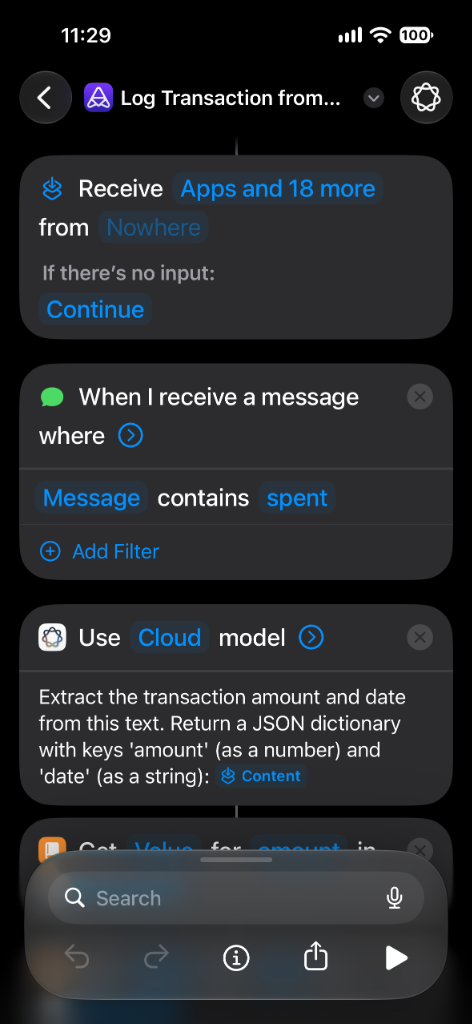
- It reads the
amountanddatevariables and passes them straight to Actuali's Log Transaction action: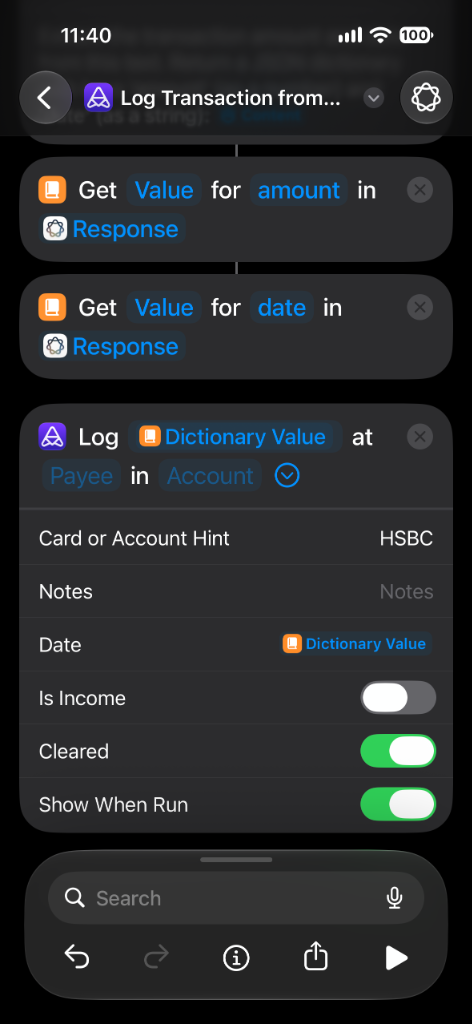
Troubleshooting
- Automation didn't trigger? Ensure Run Immediately is enabled and that the message contains the exact keyword filter you set.
- "No account" error notification? Set a Default Account in Actuali's More tab, or set a Card or Account Hint (e.g. bank name like
HSBCor card last 4 digits like1234) inside the action so Actuali matches it to your account. - Regex not matching? The universal pattern handles standard currency symbols and 3-letter ISO codes. If your bank uses custom text, adjust the prefix in the Regex pattern.
Questions?
See the support page or email actuali@mfazz.com.