Log Wallet payments automatically
Every time you tap to pay with Apple Wallet, a Shortcuts automation can log the purchase into Actuali in the background — no need to open the app.
How it works
Actuali ships a Log Transaction action that any shortcut or automation can run — there is nothing to install. iOS lets you trigger an automation whenever a specific Wallet card is charged, so you connect the two: one automation per card, each passing the transaction's amount and merchant straight into your budget.
Before you start
- Install Actuali and connect it to your Actual Budget server.
- Set a Default Account in the app's More tab, or plan to pick an account in each automation (step 6 below).
Set it up
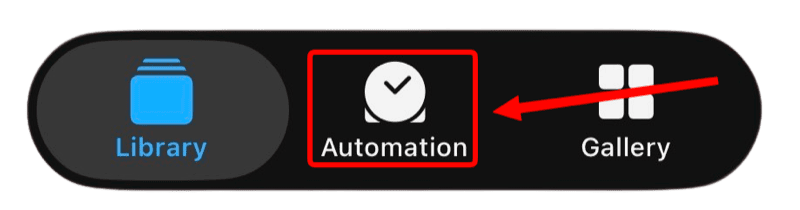
- Open the Shortcuts app and go to the Automation tab.
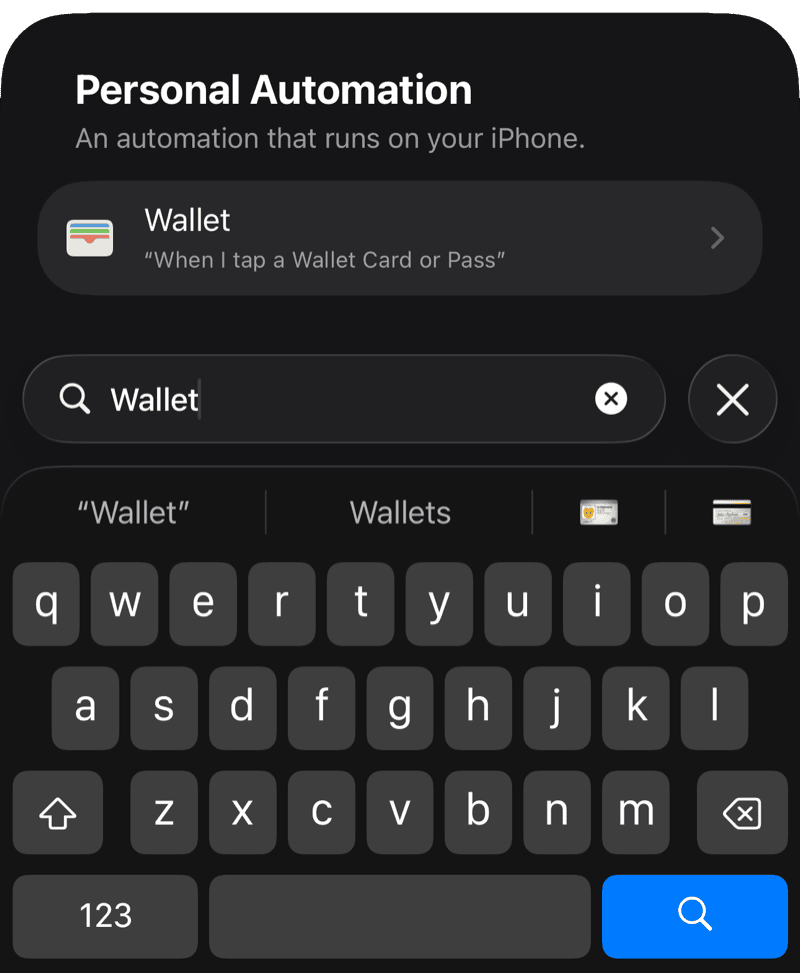
- Create New Automation, then search and choose Wallet.
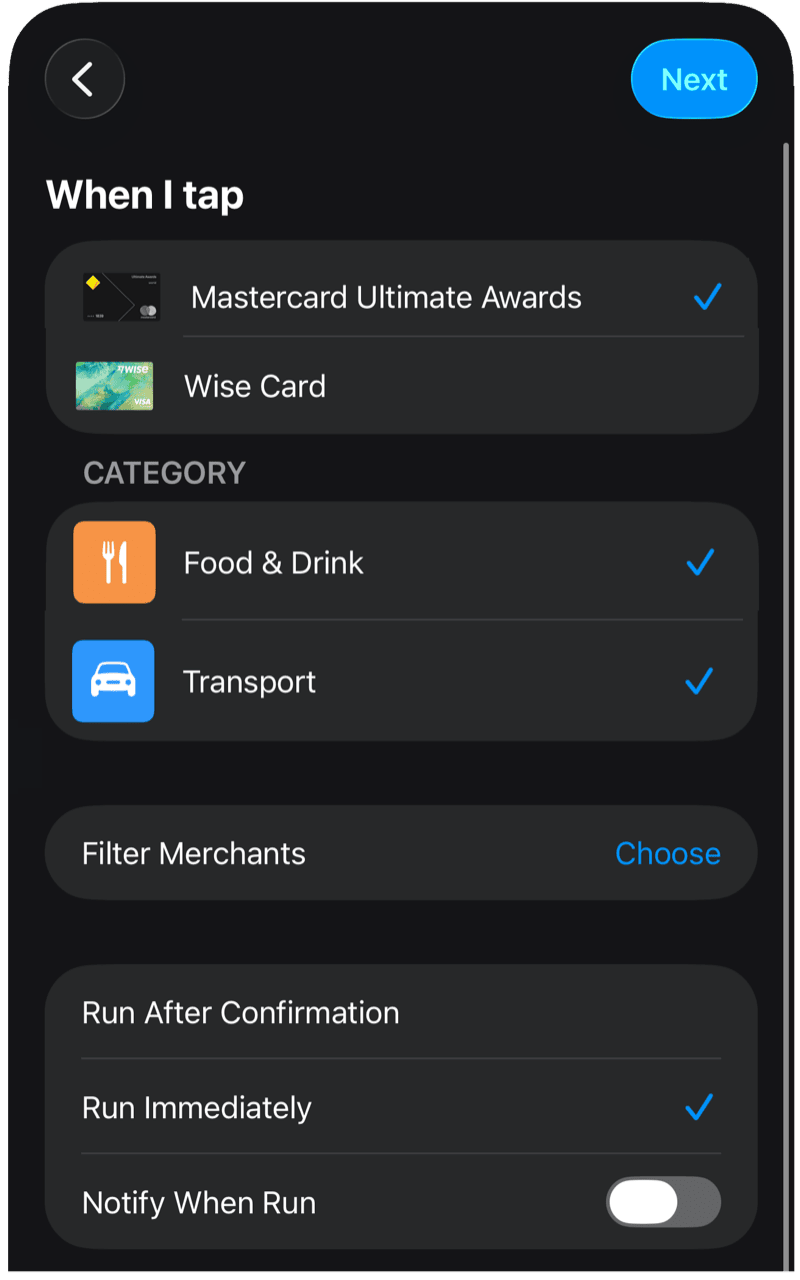
- Select the Wallet card you want to track, keep Run Immediately, and tap Next.
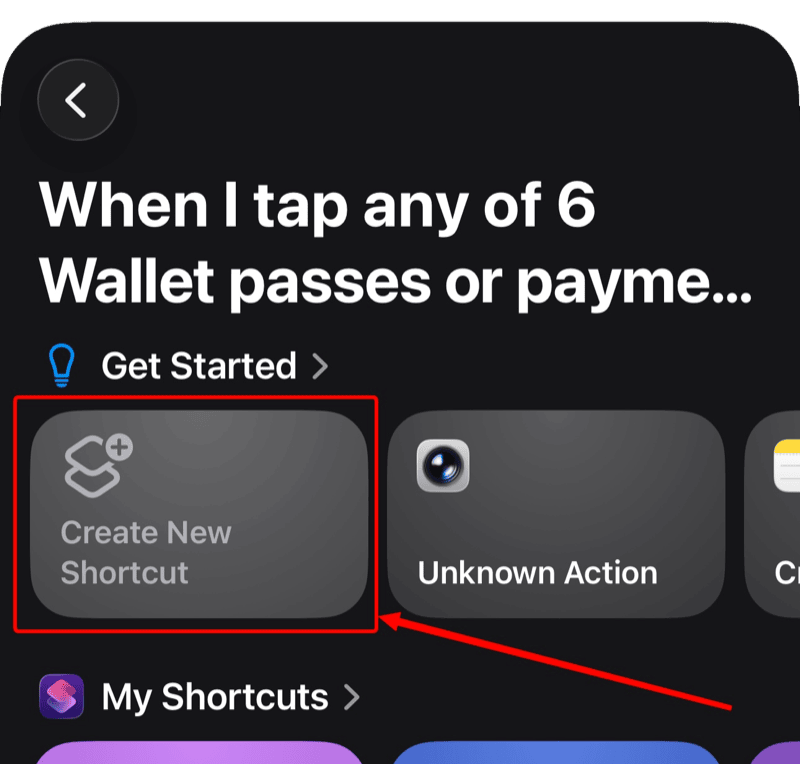
- Choose Create New Shortcut
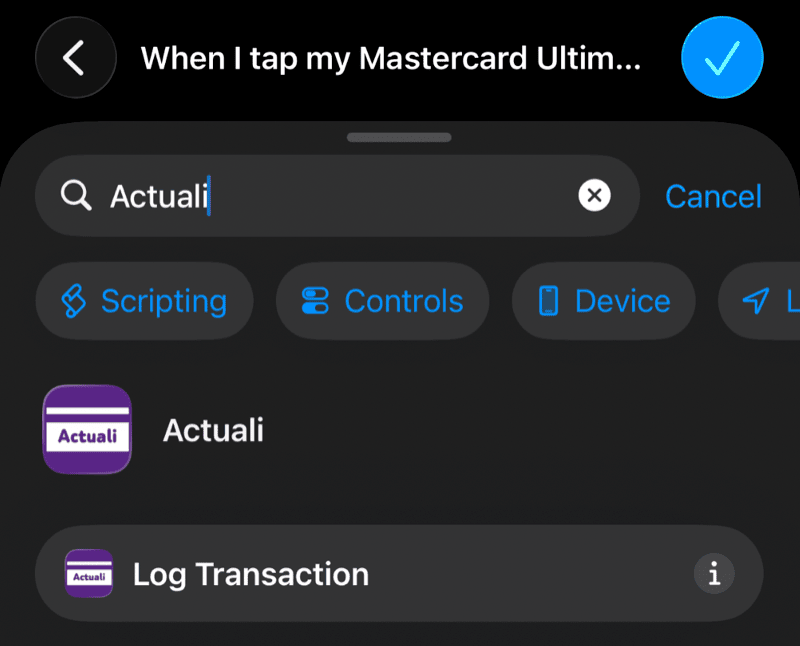
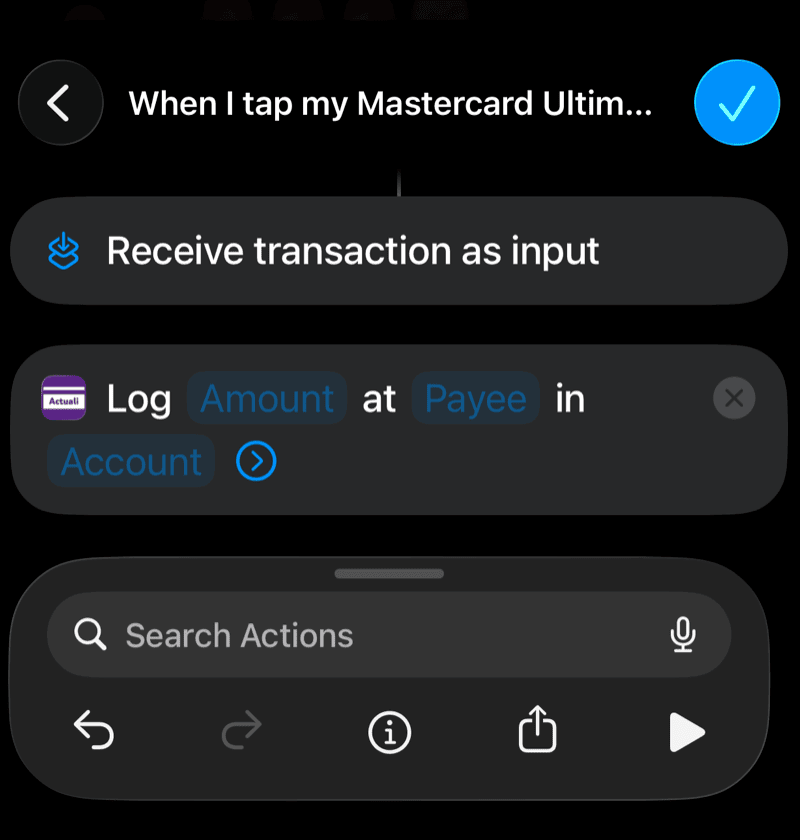
- Tap Add Action, and search for Log Transaction from Actuali.
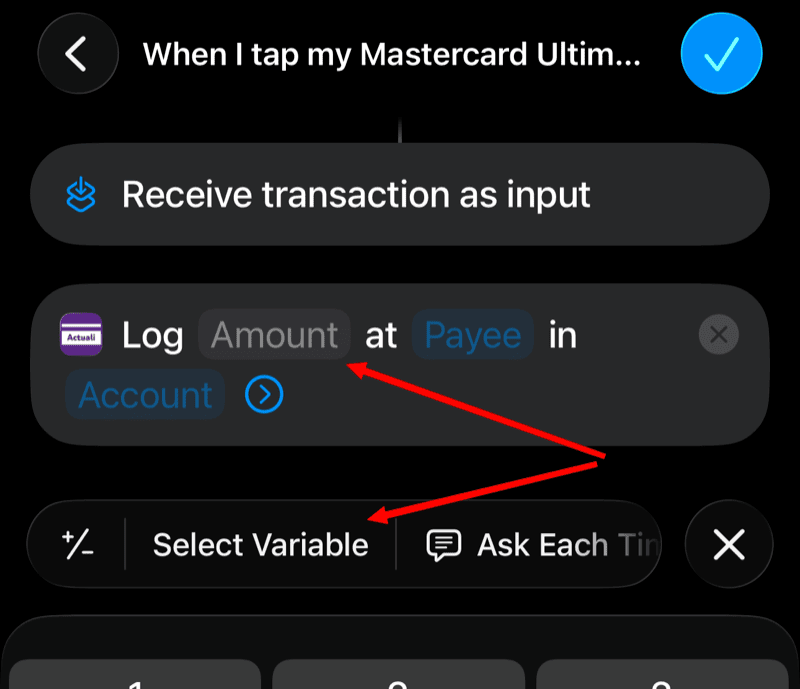
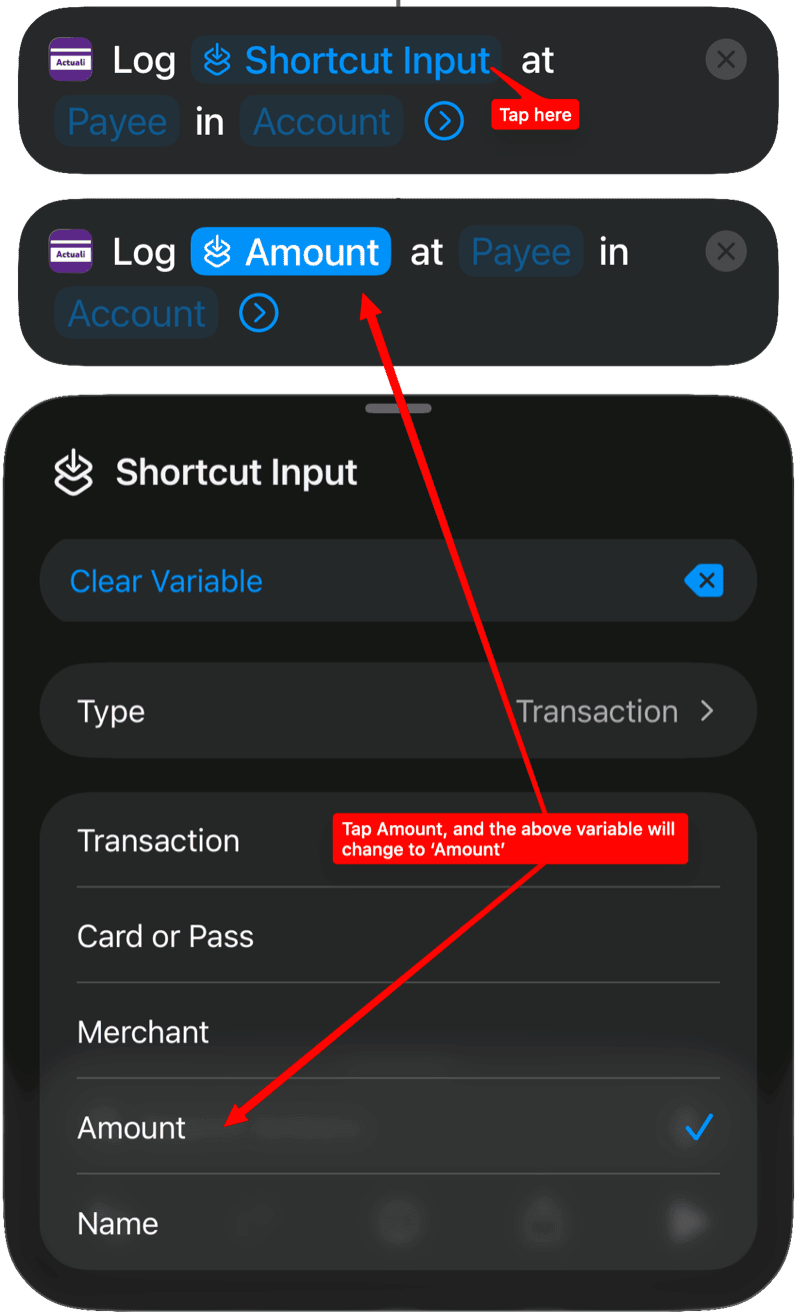
- Tap the action's Amount field, Tap Select Variable, Tap Shortcut Input. Then tap the Shortcut Input variable and change it to Amount.
- Repeat for Payee, tap on the Shortcut Input and change the variable to Merchant (or Name).
- Tap Account and select the relevant Account from Actuali.
Repeat for each card you want to track.
From then on, tapping to pay logs the purchase automatically and Actuali confirms it with a notification.
Troubleshooting
- Nothing gets logged? Check that the automation is set to Run Immediately and that the Log Transaction action's Amount and Payee fields use the transaction's variables, not blank values.
- "No amount was received" notification? iOS occasionally runs the automation before Wallet has the transaction details. This depends on the card, bank, and terminal and is outside the app's control — add the transaction manually and it usually works again on the next tap.
- "No account" error notification? Set a Default Account in Actuali's More tab, or choose an Account inside the automation's action.
- Wrong account? Each automation can target its own account — edit the automation and set the Account field to match the card. Or skip per-automation accounts entirely withcard & account mappings, which route each card to the right account automatically.
Questions?
See the support page or email actuali@mfazz.com.